

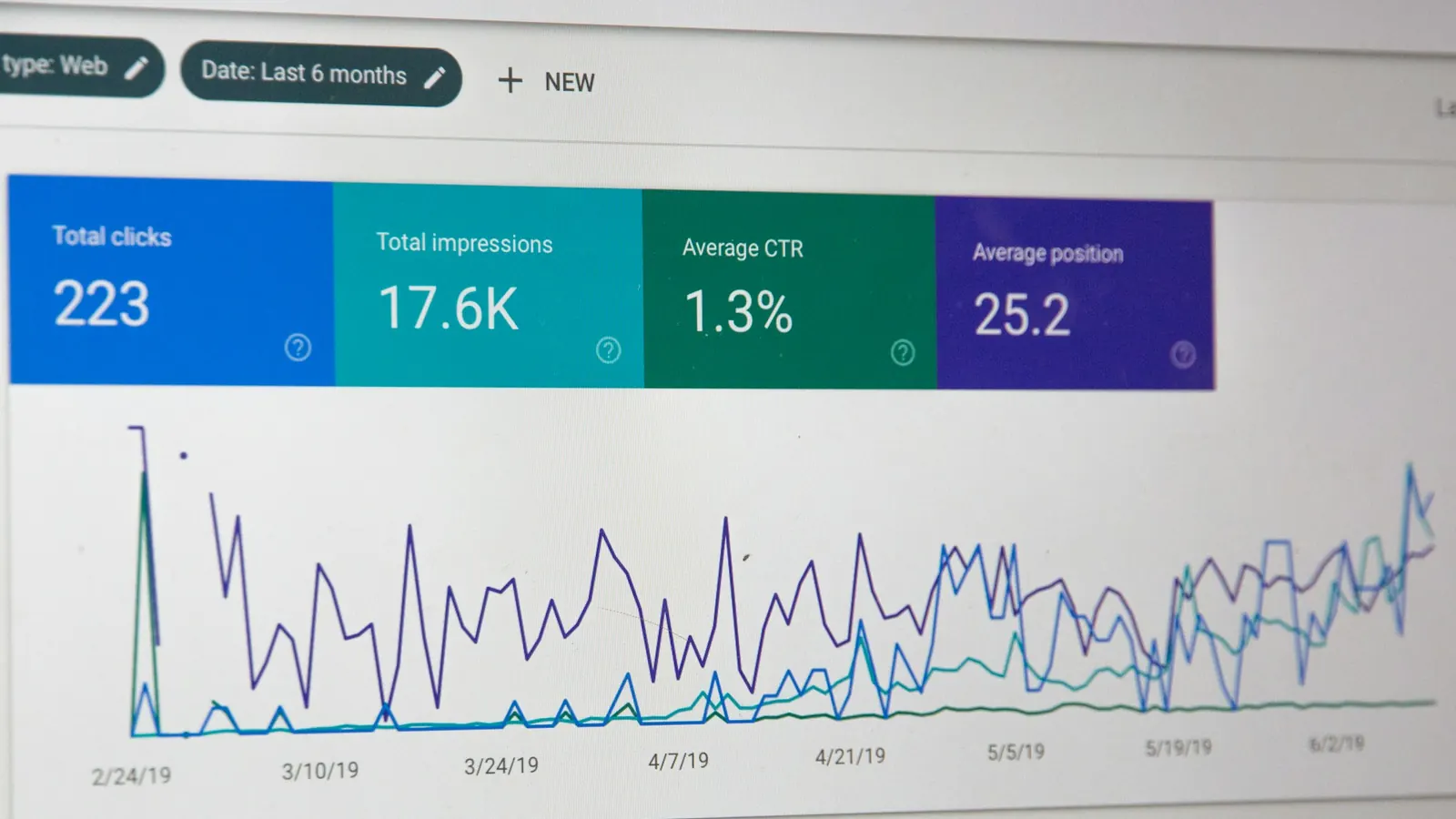
Google Search Console is a free tool from Google that shows how your website performs in Google Search. It tells you which searches you appear for, how many people click, which pages Google has indexed, and whether anything is broken. Google Analytics shows what visitors do once they arrive; Search Console shows what happens before they click. If you only set up one SEO tool, make it this one.
The short version
- Add your site as a Domain property and verify it through your DNS settings.
- The Performance report shows clicks, impressions, click-through rate and average position for every search.
- The Pages report shows which pages are indexed and why others aren't.
- Submit your sitemap, and use URL Inspection to check and request indexing for new or changed pages.
- A 15-minute check each month catches most problems before they cost you traffic.
Setting it up
- 1Go to search.google.com/search-console and sign in with a Google account the business controls, not a personal or former employee's account.
- 2Choose a Domain property and enter your domain, such as example.com. This covers every version: with and without www, and HTTP and HTTPS.
- 3Verify by adding a TXT record to your domain's DNS settings. Your domain provider's help pages explain how, and it usually works within an hour.
- 4Add other people who need access under Settings, Users and permissions, rather than sharing your login.
Data starts collecting from the moment you verify and is kept for 16 months. Our guide to domain and account ownership explains why the business, not a supplier, should own this account.
The Performance report
This is where you'll spend most of your time. It shows four numbers for any date range:
| Measure | What it means |
|---|---|
| Clicks | How many times someone clicked through to your site from Google |
| Impressions | How many times your site appeared in someone's results, even if they didn't scroll to see it |
| CTR (click-through rate) | Clicks divided by impressions |
| Average position | Your average ranking across those impressions, where 1 is the top |
Below the chart, tabs break these down by search query, page, country and device. A few useful ways to use them:
- Queries tab: see the exact searches you appear for, including ones you never targeted. These are great ideas for new or improved content.
- Pages tab: see which pages bring in the most clicks, and which get impressions but few clicks.
- Compare dates: compare the last three months with the previous three, or with the same period last year, to spot trends.
- Filter by country if you serve the US and UK, as performance often differs a lot between them.
Quick wins from the Performance report
High impressions, low clicks
A page that appears often but rarely gets clicked usually needs a better title and description. Rewrite them to be clearer and more specific, then check again in a few weeks. Our SERP preview tool helps you test new wording.
Positions 8 to 20
Searches where you average between position 8 and 20 are often the quickest gains. You're close to the first page; improving the content, adding internal links and covering missing questions can move you up.
The Pages (indexing) report
Under Indexing, the Pages report shows how many pages Google has indexed and lists the reasons others weren't. Some reasons are fine, such as redirected pages or pages you've deliberately marked noindex. Others need attention:
- Not found (404): pages that no longer exist but are still linked or submitted.
- Excluded by noindex tag: check none of these are pages you want in search.
- Crawled, currently not indexed: Google saw the page but didn't think it was worth storing yet, often because it's thin or similar to other pages.
- Server errors: your site failed to respond, which needs fixing quickly.
Sitemaps
Under Indexing, Sitemaps, enter your sitemap address (often /sitemap.xml) and submit it. Search Console then shows when Google last read it and how many pages it found. Resubmit if you make big changes to the site.
URL Inspection
Paste any page address into the search bar at the top to see whether it's indexed, when it was last crawled, and whether there are any problems. For a new or updated page, you can click "Request indexing" to ask Google to crawl it sooner. It doesn't guarantee indexing, but it often speeds things up.
Experience and Core Web Vitals
The Core Web Vitals report groups your pages as good, needing improvement or poor, based on real visitors' experience in Chrome. It needs a certain amount of traffic to show data, so smaller sites may see little here. Our Core Web Vitals guide explains what the measures mean, and our speed test checks any page instantly.
Security and manual actions
These two reports should always say no issues detected. A manual action means a Google reviewer found something against its spam policies; a security issue means your site may be hacked. Either needs urgent attention. Search Console also emails you if one appears, which is another reason to keep the account under a business email address you check.
A monthly 15-minute check
- 1Performance: compare the last 28 days with the previous period. Note any big drops in clicks.
- 2Queries: look for new searches you're appearing for, and note content ideas.
- 3Pages report: check for new errors or a drop in indexed pages.
- 4Core Web Vitals: check for any pages moving into poor.
- 5Security and manual actions: confirm both are clear.
Frequently asked questions
Is Search Console the same as Google Analytics?
No. Search Console shows how you appear in Google Search before people click. Analytics shows what visitors do on your site from any source. They work best linked together; see our GA4 setup guide.
Why don't my clicks match Analytics?
They measure different things in different ways. Search Console counts clicks from Google Search; Analytics counts sessions, and can miss visitors who block tracking. Use each for what it's best at.
How long until data appears?
Usually within a few days of verifying. Performance data generally runs a couple of days behind.
Can I see data from before I set it up?
No. Search Console only collects data from when the property is verified, which is why it's worth setting up early.
Want someone to watch this for you?
Our SEO services team reviews Search Console every month and reports the numbers that matter in plain English. See what an SEO report should include, or book a call.
See it in practice · D2C / E-commerce
D2C brand 3.2x organic traffic in 6 months
Curious how your own site scores?
Run our free website audit. Simple report, about 10 seconds, no sign-up.